
Understanding user permissions
Learn how permissions work so you can control exactly what each person on your wedding team can see and do.
Want to give someone access to help with your wedding planning? You can add other users to your account and control exactly what they can see and do.
How permissions work
WedSites uses individual permissions, not preset roles. This means you can pick and choose exactly which features each person can access. Want someone to manage the guest list but not see the budget? You can do that.
When you first add someone, you'll pick a role (like wedding planner or family member), but this is just for display. The real control comes from the individual permission checkboxes.
What permissions control
You can give people access to different parts of your account:
Website
- Edit website sections and pages
- Change design and themes
- Manage navigation and settings
- Publish or unpublish the site
Guests
- View and edit guest list
- Manage households and groups
- Import and export guests
- Send emails to guests
RSVP
- Edit RSVP form and questions
- View responses
- Manage events
Ecards
- Create and edit save the dates
- Create and edit invitations
- Send ecards to guests
Planning tools (Pro plan)
- Manage checklist tasks
- Edit budget and expenses
- Manage vendors and contacts
- Update payments
- Create seating charts
- Build timeline
Settings
- Change account settings
- Add or remove users
- Transfer account ownership
Default permissions
When you invite a new user, some permissions will be automatically selected based on common needs. You can choose which permissions to give them before sending the invitation by checking or unchecking the permission boxes.
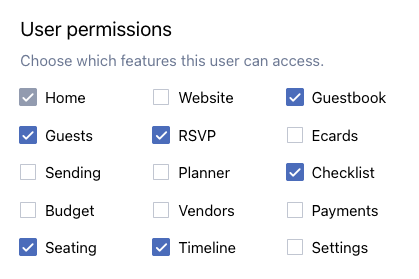
The account owner (that's you) always has full access to everything. You can't remove yourself, but you can transfer account ownership to another user within your wedding account.
Picking the right permissions
For a wedding planner: Give them access to planning tools, guests, website, and RSVP. They can help plan without having account ownership permissions.
For your partner: Usually full access to everything so you can plan together.
For a family member helping out: Maybe just guest list and RSVP access so they can help track responses.
For someone managing just one thing: Like a friend handling the seating chart, give them only seating access.
Changing permissions later
You can change someone's permissions anytime. Just go to their user settings and check or uncheck the boxes for what they should access.
If someone needs access to something new, you can add it. If they don't need something anymore, you can remove it.
What users can see
Users only see the features you've given them permission to access. If they don't have permission for something, it won't show up in their navigation menu.
This keeps things simple for them and gives you control over who sees what.
Hiding features from everyone
Want to hide a feature from your own dashboard too? Check out our article on hiding features from your dashboard. This is different from user permissions. It lets you clean up your navigation by hiding features you're not using.
Managing your team
For more details on adding users, removing users, and managing your wedding team, see our article on managing permissions for your wedding team.